
Generic Files
Generic files are standard files used for storing data, usually in the form of text such as .xls, .txt, .csv, etc. The Generic Files Connector is used to manage organization’s data flow via the generic files with the relevant information. This connector is intended for moving, deleting, copying and creating files. The connector works on a local agent.
To configure the Generic Files connector, follow the instructions below:
- In the Admin Navigation tree, select Connections and click New.

Connections Section in the Admin Navigation Tree
- Scroll down to the File Servers section and select the Folder item from the list.
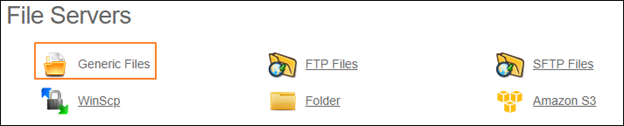
Connector Selection Page
- In the Generic Files connection work area, fill in the following fields and click Save.
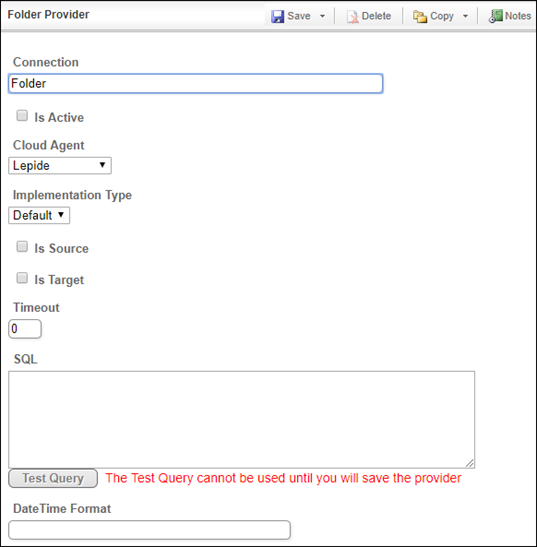
Connection Work Area
| Fields | Description |
|---|---|
|
Connection* |
A new connection name. Enter a connection alias here. |
|
Is Active |
Toggles connector’s activity at interface execution. Enable the checkbox to activate the connection for execution. |
|
Cloud Agent* |
The LAN you are working with. Select "IConduct" for cloud systems and your corporate agent for internal systems. |
|
Implementation Type* |
Defines the connection implementation type. Supported values:
|
|
Is Source |
Not used in this connector. |
|
Is Target |
This connection entity is available as a data target that receives data from schema to current data container. Enable the checkbox to ensure data export. |
|
Timeout |
The length of time (in milliseconds) the IConduct platform waits for a response from the connection provider before returning a timeout error. Set the time value to stop the system from connection attempts. |
|
Query |
Query box is intended for entering a test query. The user can test the query once the connection is saved. |
|
DateTime Format |
Not used in this connector. |
|
Root Path* |
Defines the file(s) directory. Enter a valid path to a local files folder. |
|
Recursive |
If enabled, includes all the subfolders to the directory defined in the Root Path field. |
|
Impersonate |
If enabled, allows impersonating the user to access password-protected file(s). |
|
Username |
Enter the username to password-protected file(s). |
|
Password |
Enter the user password. |
|
Domain |
Enter a company domain name. |
*- mandatory fields
Once the connection is saved, you can test if it is successful. Click Test Connection in the toolbar. If the created connection works, you will receive a success message.

Testing the Connection