
HTTP POST
HTTP POST is a request method that sends data to server. It requests that a web server accepts the data enclosed in the body of the request message, most likely for storing it. The POST request results in change on the server. HTTP POST is often used when uploading a file or when submitting a completed web form. The HTTP POST connector by IConduct enables sending data, processing POST requests and returning the operation result into the IConduct schema.
To configure the HTTP POST connector, follow the instructions below:
- In the Admin Navigation tree, select Connections and click New.

Connections Section in the Admin Navigation Tree
- On the Connector Selection Page select the HTTP Post item from the Services section.
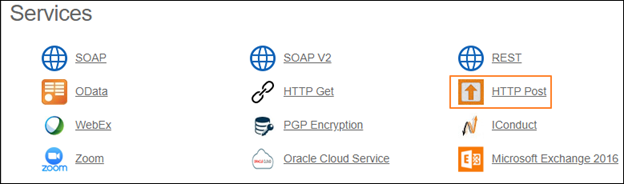
Connector Selection Page
- In the HTTP Post work area, fill in the following fields and click Save.
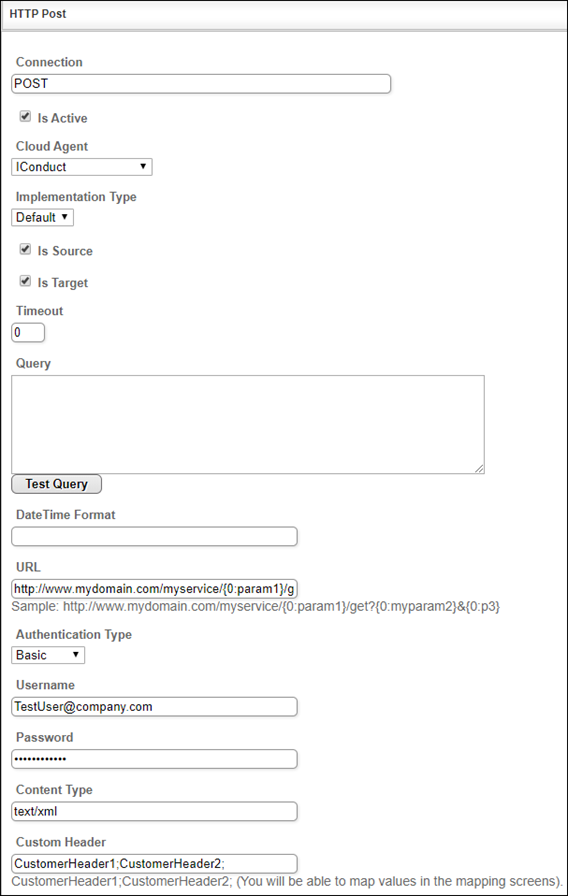
Connection Work Area
| Field | Description |
|---|---|
|
Connection* |
The new connection name. Enter a connection alias here. |
|
Is Active |
Toggles connector’s activity at interface execution. Enable the checkbox to activate the connection for execution. |
|
Cloud Agent* |
The LAN you are working with. Select "IConduct" for cloud systems and your corporate agent for internal systems. |
|
Implementation Type* |
Defines the implementation type. Select from the drop-down list:
|
|
Is Source |
This connection entity is available as a data source for Import (writing to Schema). Enable the checkbox to ensure data import. |
|
Is Target |
This connection entity is available as a data target that receives data from schema to current data container. Enable the checkbox to ensure data export. |
|
Timeout |
The length of time (in milliseconds) the IConduct platform waits for a response from the connection provider before returning a timeout error. Set the time value to stop the system from connection attempts. |
|
Query |
Not used in this connector. |
|
DateTime Format |
Not used in this connector. |
|
URL* |
The HTTP Server address where the request is sent. Insert the target system link here. Sample: http://www.mydomain.com/myservice/{0:param1}/get?{0:myparam2}&{0:p3} The following data is variable:
Note: The URL format should comply with the one shown in the example. The parameters must be typed in figure brackets starting with 0: {0: p3}. Note: The parameters automatically appear as columns in the Export Schema Mapping. They serve to attach the request body.
|
| Authentication Type |
The end-point authentication method. Select the required authentication type from the drop-down list:
|
|
Username/ Password |
Credentials used to access the HTTP server. |
| Content type* | The content type of the request body content. Set the value in MIME Type, e.g. text/plain or image/png. |
| Custom header* |
Allows inserting custom request headers. Type headers divided by a semicolon. Appropriate columns will appear in the Export and Import Mappings. Example: CustomerHeader1;CustomerHeader2; |
* - mandatory fields
Once the connection is saved, you can test if it is successful. Click Test Connection on the toolbar. If the created connection works, you will receive a success message.

Testing the Connection