
Import Step
The information on this page relates to the new upgraded interface of the IConduct platform. To view information about the Classic version of the user interface, follow this link.
This section describes how to add and set up the connection for the Import step applicable to the tasks in the interface. For more information about steps, see Defining Steps .
Import step is used to import data into the IConduct Schema for transfer or further manipulation. To create the Import step, navigate to Interfaces> {Specific Interface}> Tasks> {Specific Task}> Steps> New >New Import Step.
To import your data from DynamicCRM 4.0, follow the steps below:
- Select your DynamicCRM 4.0 connection from the Connection drop-down list. Click Open for your reference, or if modifications or any changes are required in the pre-defined connection.
If you can't find the necessary Connection in the list, go to the connection page and make sure the Is Active and Is Source checkboxes are enabled.
- Select the required action from the Action drop-down list:
- Insert: Import data into the schema.
- Update: Add the latest data to the existing schema fields.
- Delete: Delete data from the existing schema fields.
- Upsert: Depending on the key, either update or insert data to the schema.
On selecting Update, Delete or Upsert from the Actions drop-down list, the Schema Column and Source Column appear. These fields associate a specific field in the source system to a specific field in the Schema. The rows from the source system will Update/Delete or Upsert rows in the Schema based on this association. Click Refresh to update the list of source columns.
- Fill in the Query box using the FetchXML query language. You can create the FetchXML query in two ways:
- Manually by typing the fetch XML code into the query box.
- Automatically by copying out the fetch XML code from Dynamics CRM 4.0 and pasting it into the query box. To do so, go to your Dynamics CRM 4.0 profile> Advanced Find> Download Fetch XML and export the file. The fetch XML code will contain your current settings.
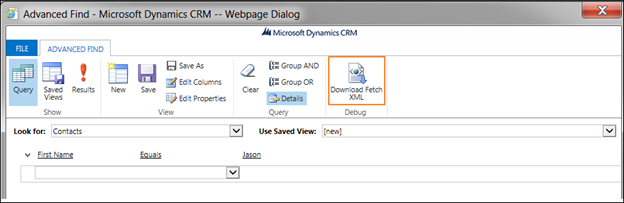
Downloading Fetch XML
Query examples:
1) Retrieve the name field from the account entity:
<fetch mapping=‘logical’>
<entity name=‘account’>
<attribute name=‘name’/>
</entity>
</fetch>
2) Retrieve all accounts where the last name of the owning user is not equal to Cannon:
<fetch mapping=‘logical’>
<entity name=‘account’>
<attribute name=‘accountid’/>
<attribute name=‘name’/>
<link-entity name=‘systemuser’ to= ‘owninguser’>
<filter type=‘and’>
<condition attribute=‘lastname’ operator=‘ne’ value=‘Cannon’ />
</filter>
</link-entity>
</entity>
</fetch>
3) Retrieve the account id and name fields from the account entity. Order by name in an ascending order:
<fetch mapping=‘logical’>
<entity name=‘account’>
<attribute name=‘accountid’/>
<attribute name=‘name’/>
<order attribute= ‘name’ descending=‘false’ />
</entity>
</fetch>
4) Retrieve the first 3 records of the name field from the account entity:
<fetch mapping=‘logical’ count=‘3’>
<entity name=‘account’>
<attribute name=‘name’ alias=‘name’/>
</entity>
</fetch>
5) Retrieve the first 2 records of the accoundid, name, inductrycode fields from the account entity. Order by name in ascending order. Return the first page only:
<fetch mapping=‘logical’ page=‘1’ count=‘2’>
<entity name=‘account’>
<attribute name=‘accountid’/>
<attribute name=‘name’/>
<attribute name=‘industrycode’/>
<order attribute= ‘name’ />
</entity>
</fetch>
Click Show Entities to get the list of all supported entities.
Click Test Query to test the query and check if it returns required data (optional).
Once done, press Create and proceed with mappings.