Export Step
This section describes how to add and set up the connection for the Export step applicable to the tasks in the interface.
For more information about steps, see Defining Steps
The Export step allows exporting entities from IConduct to Excel.Net.
To create the Export step, navigate to Interfaces> {Specific Interface}> Tasks> {Specific Task}> Steps >New >New Export Step.
- Select the Excel connection from the Connection drop-down list. Click Open for your reference, or if modifications or any changes are required in the predefined connection.
Warning: If you can't find the necessary Connection in the list, go to the connection page and make sure the Is Active checkbox is enabled.
- Select the target entity from the Entity Name drop-down list. The list of entities corresponds to the Worksheets in the target Excel file.
- Select the required action from the Action drop-down list. .
- Insert: Put data into the schema.
- Update: Add the latest data to the existing schema fields.
- Upsert. Depending on the key, either update or insert data to the schema.
Note: On selecting Update or Upsert from the Actions drop-down list, the Schema Column and Source Column appear. These fields associate a specific field in the source system to a specific field in the Schema. The rows from the Schema will Update or Upsert rows in the target system based on this association. Select required columns to enable automatic updates
- Once done, press Create and proceed with mappings.
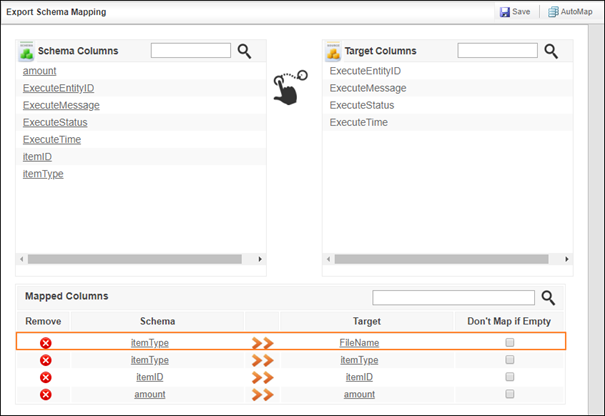
IConduct allows mapping both the Excel columns already existing in the target sheet and placeholders that appear in the Target Columns list. By mapping placeholders, new columns in the target Excel file are created.
The FileName target column allows creating new Excel files at a path mentioned in the Path field of the current connector. By mapping a source column to FileName you create new files by the quantity of not-empty source column boxes, the file names assigned as mentioned in these boxes.