
Format String
The information on this page relates to the new upgraded interface of the IConduct platform. To view information about the Classic version of the user interface, follow this link.
The Format String manipulate step allows you to compose the string by retrieving the values from a set of columns within a scheme.
The pattern is applied via the Format and Columns fields.
Format: {0}_{1}_{2}_{3}
Columns: C1,C2,C3,C4
In the example above, the value from C1 column will be taken, then the sign “_” will follow, then the value from C2 column will be taken and so on. E.g. value1_value2_value3_value4.
To configure this manipulate step, follow the instructions below:
- In the specific Interface work area, press the downward button next to the task and press the ‘+’ (plus sign) button.
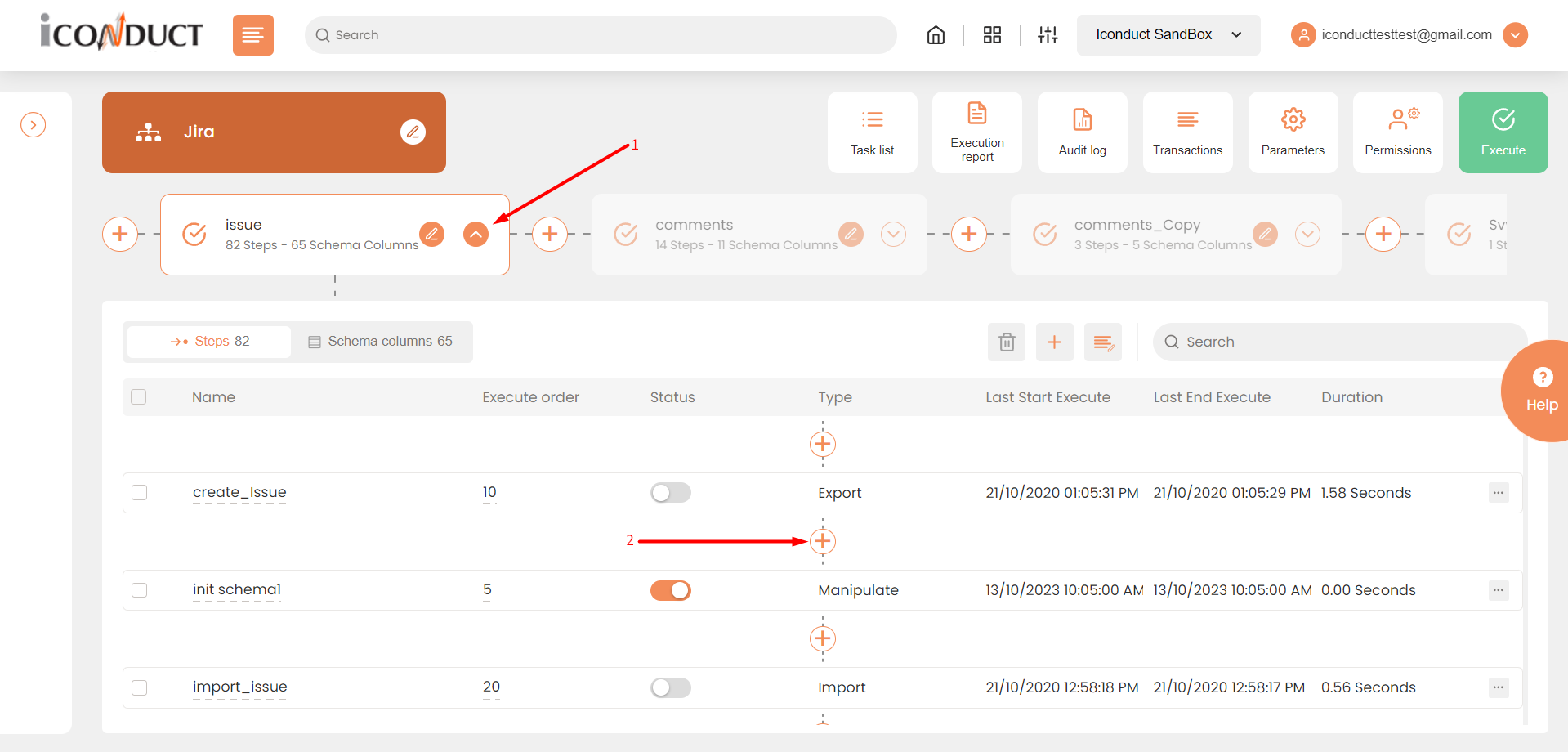
Creating a New Step
- Select Create manipulation step.
- Navigate to the Texts section and select Format String.
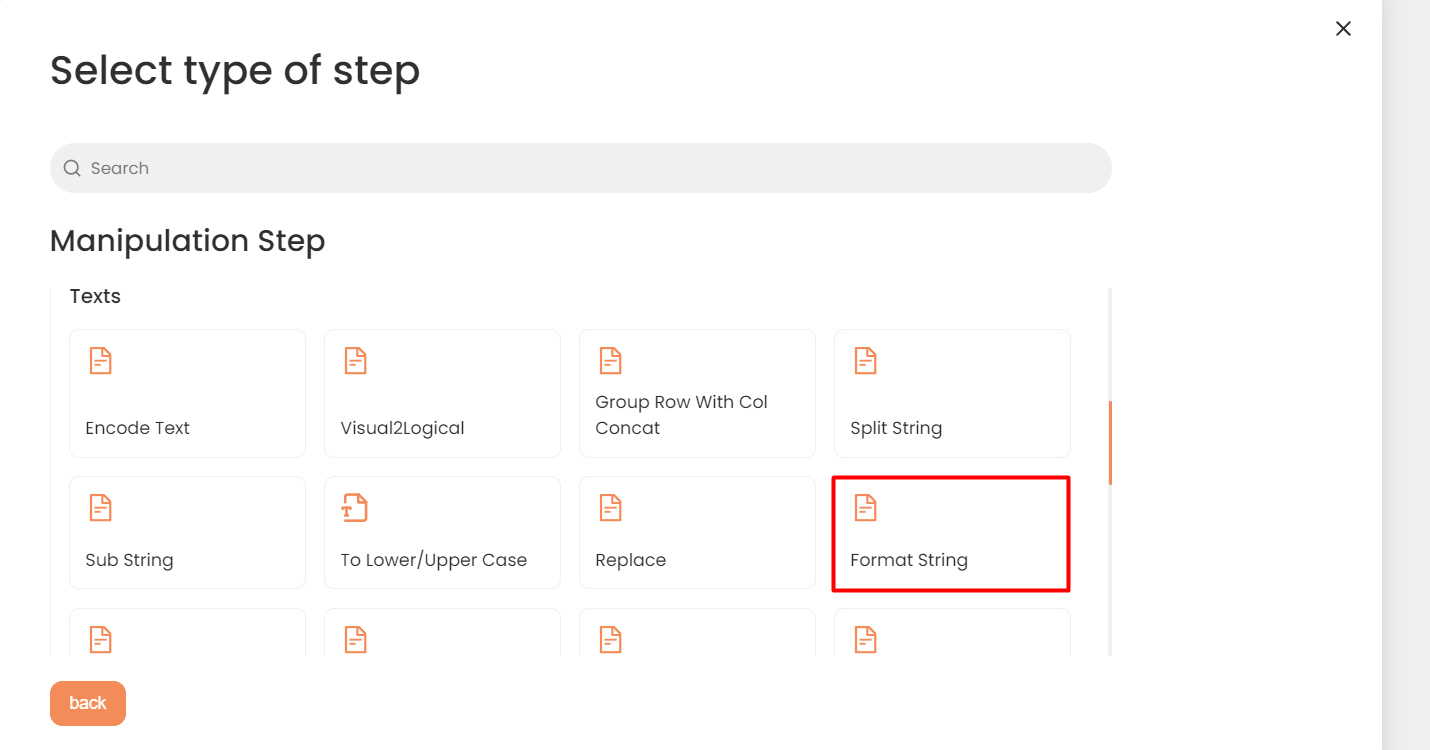
Texts Section
- In the Format String work area, fill in the following fields:
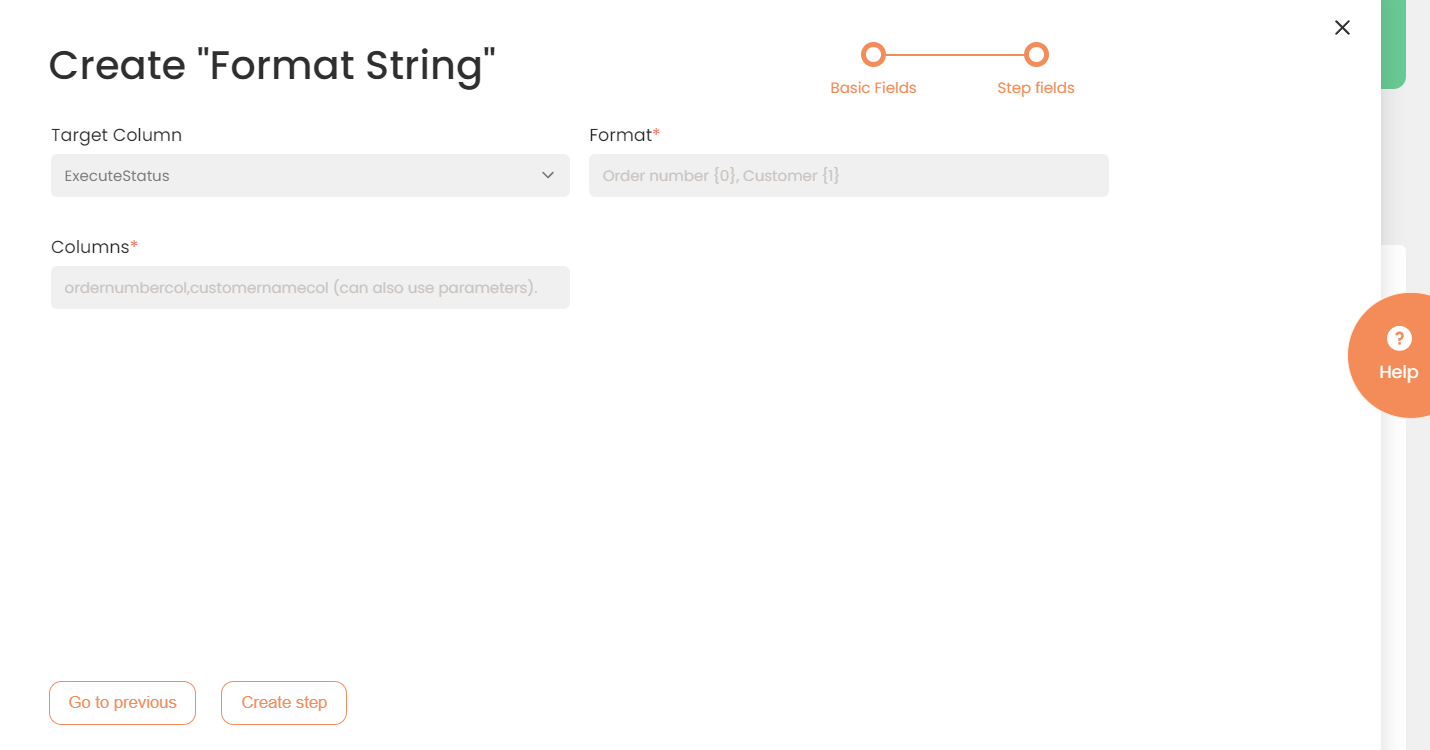
| Fields | Description |
|---|---|
|
Name of step |
Provide a distinctive name for this step. |
|
Filter Expression |
Optional. Use this filed to filter data from the source database prior to inserting it into the Schema table. |
|
Sort Expression |
Optional. Use this field to sort data from the source database prior to inserting it into the Schema table. |
|
Order of Execution |
Enter the order in which this step should be executed. |
|
Audit notes |
Leave notes about the step if needed. This field may contain any information, such as the purpose of the step, further actions that must be taken etc. for you to work with the step in the future or to inform team members about your intent. |
|
Is Active |
Activate the switch to engage the scheduler for this step. |
|
Stop interface execution if query failed |
Optional. If enabled, the system will stop any data manipulation if the query returns an error. |
|
Save Schema (enabled per interface) |
If selected, the schema is created for this step. |
|
Target Column |
Select the column where the target data is stored. |
|
Format |
Specify the format that will be applied in the target column. Example: {0}_{1}_{2}_{3} |
|
Columns |
The columns that will be converted to the specified format. The parameters can also be used here. |
- Press the Create step button.