
Defining a New Manipulate Step
The information on this page relates to the new upgraded interface of the IConduct platform. To view information about the Classic version of the user interface, follow this link.
Manipulate steps are used to process data stored in the Schema in a wide variety of ways, many of them depending on the nature of the data in the specified columns. The first stage is defining a new Manipulate Step is to decide what process you want to invoke:
- Date manipulation
- Column manipulation
- Setting Parameters
- Files related processes
- Math operations
- Text related processes
- Schema manipulation
- Keys related processes
- Validation
- Execution
- JSON
The following image shows some of the currently available procedures. Choose the relevant option for your new Manipulate Step.
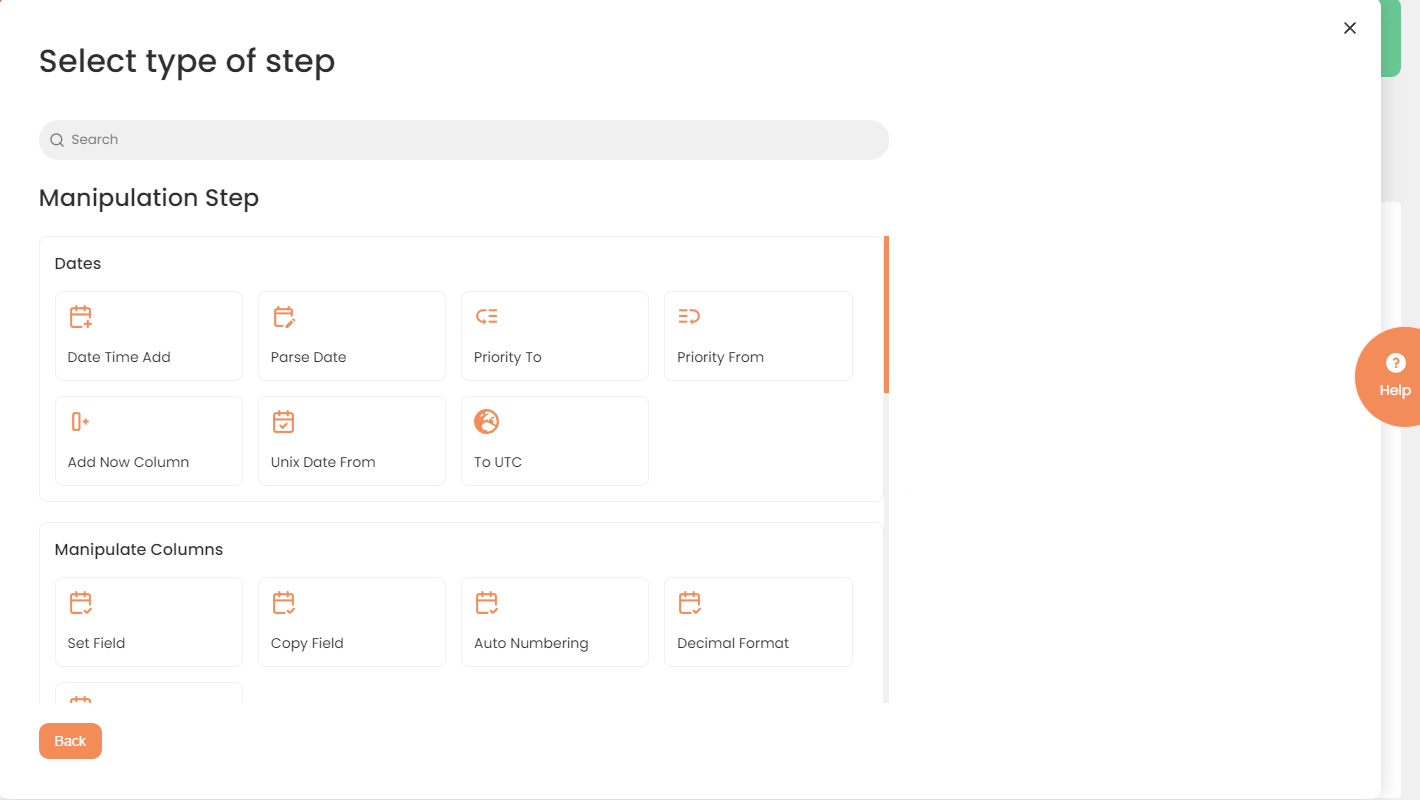
The New Manipulate Step Options Page
For further information on defining specific options, see The Manipulate Data Options (Manipulate Step).
To Define a New Manipulate Step:
- Select Interfaces>{Specific Interface}>Tasks>[Specific Task]>Steps
- Press "+" (plus sign button). The selection menu opens up, listing the types of steps that are available.
- PressNew Manipulate Step. The New Manipulate Schema Step page opens.
- Select the subtype of the manipulation step you would like to create.
- Fill all the relevant fields available for the selected step. Every manipulation step has its unique features that can be adjusted any way you see fit. For more information about the fields in a particular manipulations step, please visit its corresponding page.
- Press Create to save the manipulate schema step.
A new Manipulate Schema step is generated. A relevant Schema Mapping subfolder will be created.