
MySQL
The information on this page relates to the new upgraded interface of the IConduct platform. To view information about the Classic version of the user interface, follow this link.
MySQL is an open source relational database management system. With its proven performance, reliability, and ease-of-use, MySQL is the leading database choice for web-based applications. The MySQL connector by IConduct allows business users to export and import organization’s data onto and from MySQL databases.
To configure the MySQL connector, follow the instructions below:
- In the Main Menu, select Connections and press Create connection.
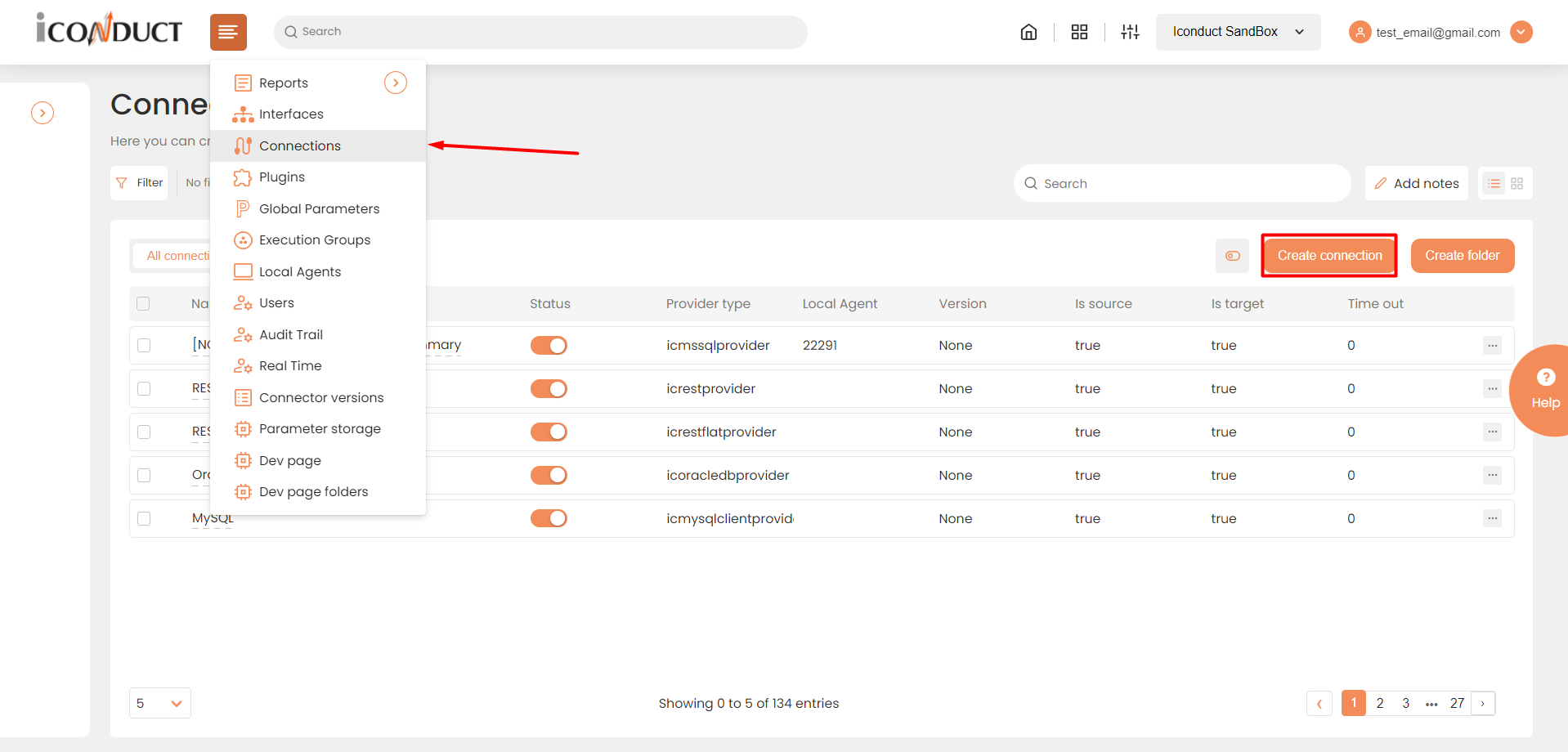
Accessing connections
- On the Connector Selection Page select the MySQL item from the Database Servers section.
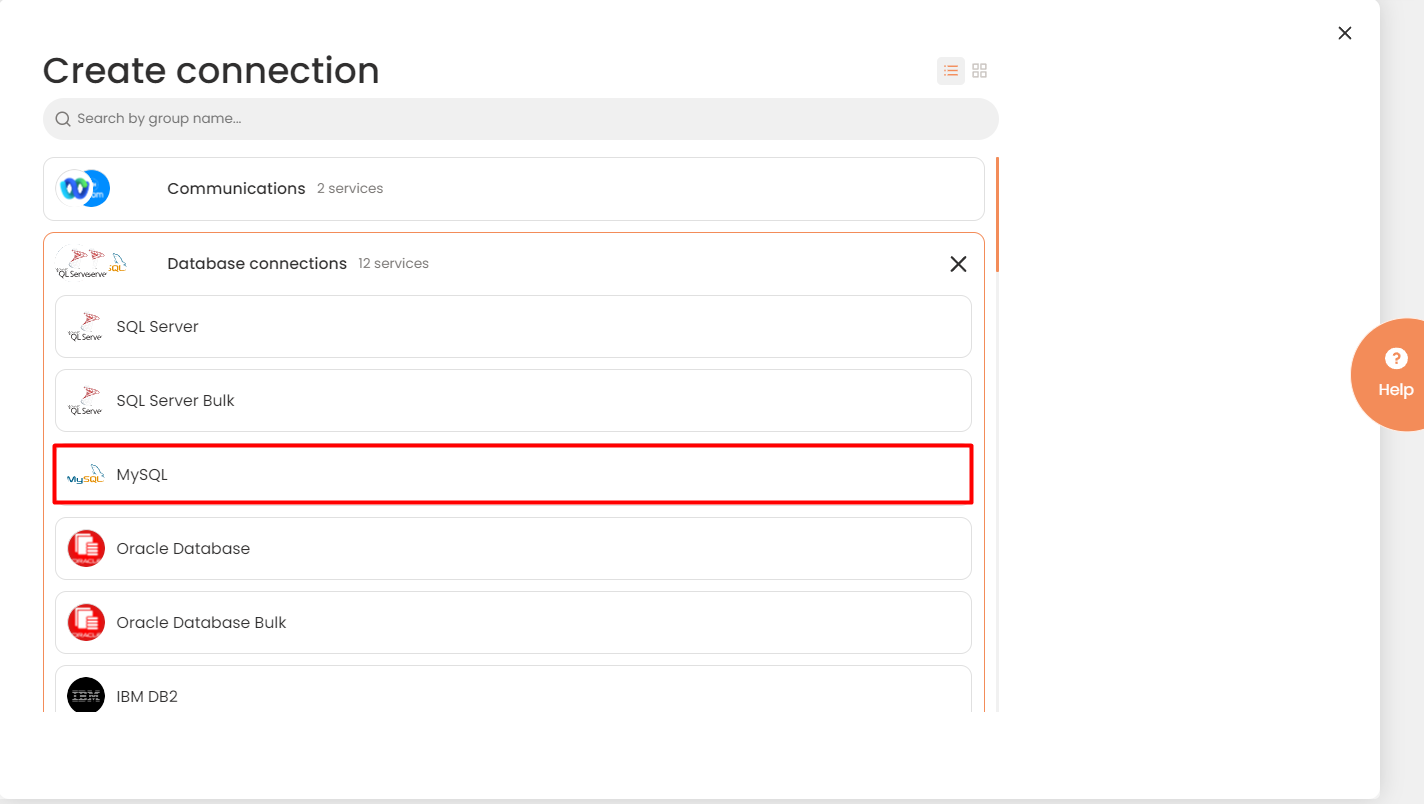
Connector Selection Page
- In the MySQL Connection work area, fill in the following fields and click Create.
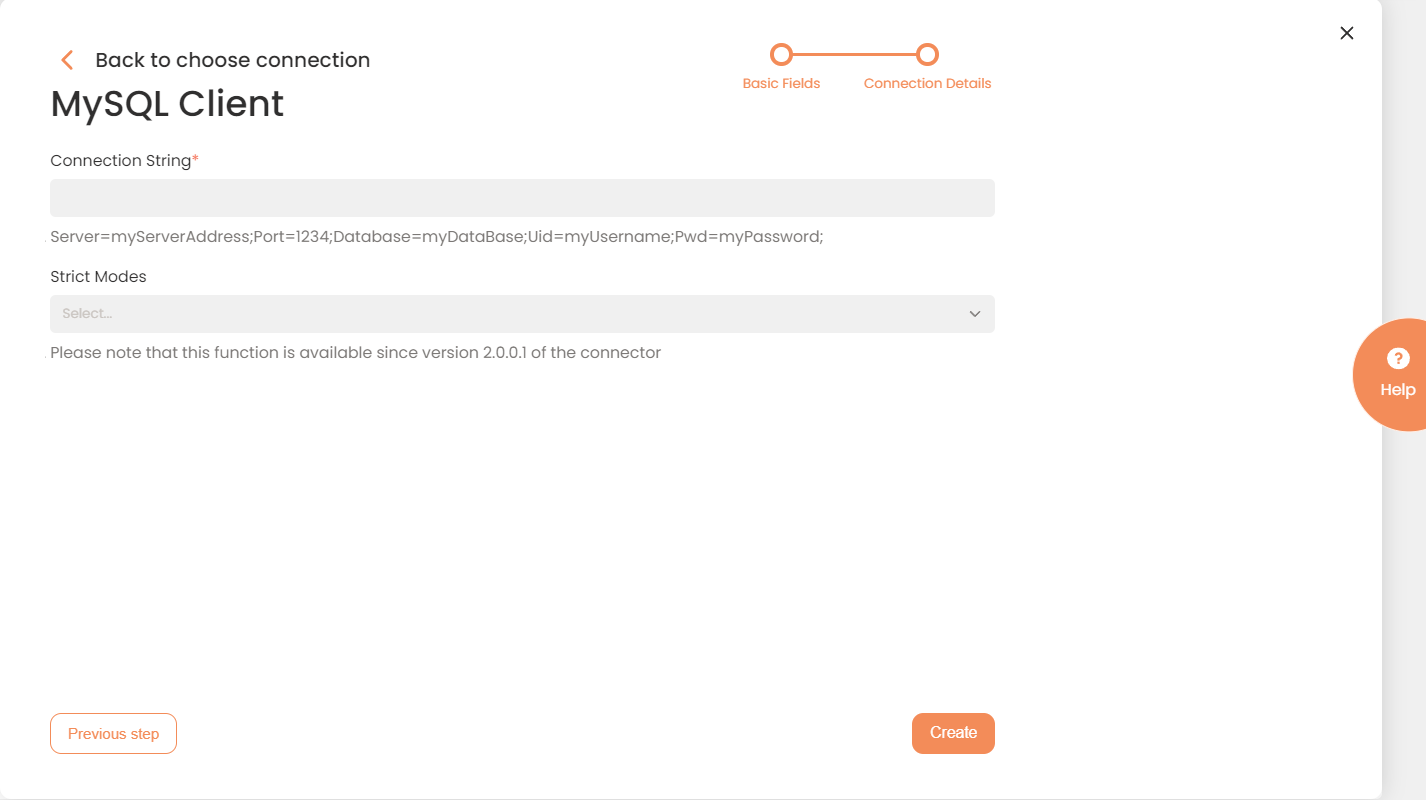
Connection Details Area
| Fields | Description |
|---|---|
|
Connection* |
A new connection name. Enter a connection alias here. |
|
Is Active |
Toggles connector’s activity at interface execution. Enable the checkbox to activate the connection for execution. |
|
Cloud Agent* |
The LAN you are working with. Select "IConduct" for cloud systems and your corporate agent for internal systems. |
|
Implementation Type* |
Defines the implementation type. Select from the drop-down list:
|
|
Is Source |
This connection entity is available as a data source for Import (writing to Schema). Enable the checkbox to ensure data import. |
|
Is Target |
This connection entity is available as a data target that receives data from schema to current data container. Enable the checkbox to ensure data export. |
|
Timeout |
The length of time (in milliseconds) the IConduct platform waits for a response from the connection provider before returning a timeout error. Set the time value to stop the system from connection attempts. |
|
Query |
The box is intended for entering a query. You can test the defined query by clicking Test Query once the connection is saved. It’s recommended to test the query after the connection testing. |
|
DateTime Format |
Allows defining the date and time formats appropriate for the connection. Recommended format: yyyy-MM-dd HH:mm:ss |
|
Connection String*
|
A string that specifies information about a data source and the means of connecting to it. Refer to this page for more information about connection strings. Example: Server=myServerAddress;Port=1234;Database=myDataBase; Uid=myUsername;Pwd=myPassword; |
* - mandatory fields
Once the connection is saved, you can test if it is successful. Press Test Connection. If the created connection works, you will receive a success message.

Testing the Connection